Schema markup for small businesses: the only 4 types you need (with copy-paste code)
We checked 3,671 UK small business homepages.
Cafés, salons, plumbers, accountants and more.
54.9% had no business details in their code at all.
This guide fixes that. Four short blocks of code. Copy, paste, swap in your details. Done.
The short version
- Schema markup is a hidden label that tells Google your name, address, hours and what you sell.
- Only 4 types are worth your time: LocalBusiness or Organization (pick one), FAQPage and Service.
- It won't make AI pick you on its own. But it stops Google guessing.
- Check your site free with our schema checker. It takes about a minute.
Schema markup is a hidden name badge for your website
Your website tells people who you are. In words and pictures.
Google has to read those words and work it out. Sometimes it gets it wrong.
Schema markup is a short block of code that spells it out instead.
Name. Address. Phone. Opening hours.
Visitors never see it. Google reads it straight away.
So how many businesses actually have one?
More than half of UK small businesses don't have one
In our UK Small Business AI Readiness Study, we found a big gap.
54.9% of homepages had no business details in their code.
Only 35.2% had them complete.
Food and hospitality did worst, at 58.1% missing. Trades did best. And it was still 51.7%.
Missing it? You're not alone.
But you can get ahead of most of your rivals in an afternoon.
First, the honest bit.
It won't make AI pick you on its own
Some people sell schema as a magic switch for ChatGPT. It isn't.
Google says you don't need any special schema to appear in its AI Overviews or AI Mode.
So why bother?
Because Google does use it.
Google's Organization guide says it helps Google understand your business.
It can even help pick which logo Google shows.
Its LocalBusiness guide says you can use it to give Google your opening hours.
It also stops guesswork. Wrong hours lose you customers.
It's free and quick. Set it up once, then keep it up to date.
That's why we'd do it.
You only need 4 types
There are hundreds of schema types. A small business needs four.
| Type | What it says | Who needs it | Where it goes |
|---|---|---|---|
| LocalBusiness | Who you are, where you are, when you're open | Anyone customers visit, or who visits customers | Homepage |
| Organization | Who you are, how to reach you | Online-only or UK-wide businesses with no shop or local area | Homepage |
| FAQPage | The questions you answer | Anyone with a questions page | The page with the questions |
| Service | What you sell and what it costs | Anyone who sells a service | Each service page |
Most businesses use LocalBusiness or Organization. Not both.
A café, salon or plumber? LocalBusiness.
An accountant who only works online, across the whole UK? Organization.
Why Service as the fourth? Because customers ask "how much?" early.
This is where you answer it.
Now the code.
The copy-paste code, one type at a time
Each block below is ready to paste.
Swap anything that says "Your..." or example.com for your own details.
Only put in things that are true and already on your website.
1. LocalBusiness tells Google who you are, where you are and when you're open
This one matters most. It goes on your homepage, once.
<script type="application/ld+json">
{
  "@context": "https://schema.org",
  "@type": "CafeOrCoffeeShop",
  "name": "Your Business Name",
  "url": "https://www.example.com/",
  "logo": "https://www.example.com/logo.png",
  "image": "https://www.example.com/shop-front.jpg",
  "description": "One or two sentences on what you do and who for.",
  "telephone": "+44 20 7946 0000",
  "email": "hello@example.com",
  "address": {
    "@type": "PostalAddress",
    "streetAddress": "1 Your Street",
    "addressLocality": "Your Town",
    "postalCode": "YOUR POSTCODE",
    "addressCountry": "GB"
  },
  "openingHoursSpecification": [
    {
      "@type": "OpeningHoursSpecification",
      "dayOfWeek": [
        "Monday",
        "Tuesday",
        "Wednesday",
        "Thursday",
        "Friday"
      ],
      "opens": "08:00",
      "closes": "17:00"
    },
    {
      "@type": "OpeningHoursSpecification",
      "dayOfWeek": "Saturday",
      "opens": "09:00",
      "closes": "16:00"
    }
  ],
  "priceRange": "££",
  "sameAs": [
    "https://www.facebook.com/your-page",
    "https://www.instagram.com/your-page"
  ]
}
</script>
Swap these:
"@type": the closest match for your business. For exampleCafeOrCoffeeShop,HairSalon,PlumberorAccountingService.- Not sure? The full list is on schema.org. Or just use
LocalBusiness. "telephone": your number, starting +44."openingHoursSpecification": your real hours, in 24-hour time. Leave out days you're closed."priceRange":£,££or£££. Or leave it out."sameAs": links to your real social pages. Delete any you don't have.
Visit customers instead, like a plumber or cleaner? Add the towns you cover.
Put this line just after the "priceRange" line:
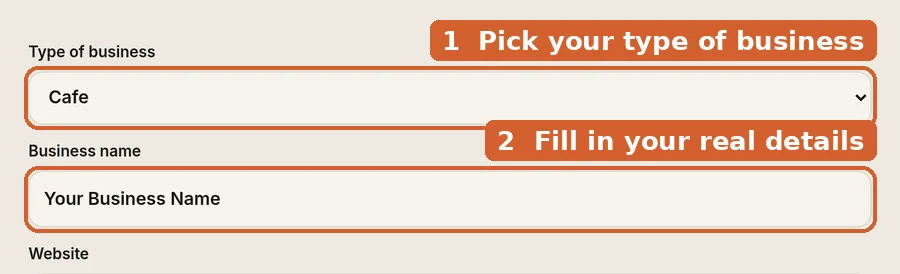
"areaServed": ["Your Town", "Next Town Along"],Don't want to type it? Our free generator writes it for you.
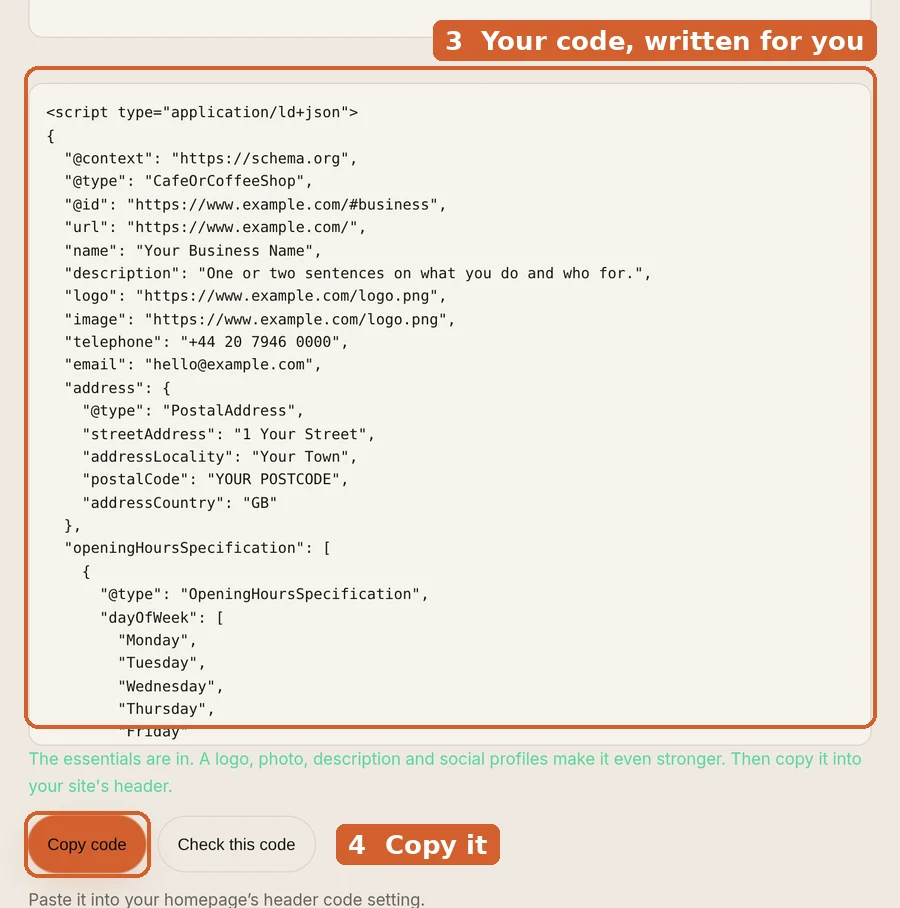
No shop and no local area? Use the next one instead.
2. Organization is for businesses customers never visit
Online shops, consultants and UK-wide services. Same idea, minus the opening hours.
<script type="application/ld+json">
{
  "@context": "https://schema.org",
  "@type": "Organization",
  "name": "Your Business Name",
  "legalName": "Your Business Name Ltd",
  "url": "https://www.example.com/",
  "logo": "https://www.example.com/logo.png",
  "description": "One or two sentences on what you do and who for.",
  "email": "hello@example.com",
  "telephone": "+44 20 7946 0000",
  "address": {
    "@type": "PostalAddress",
    "addressLocality": "Your Town",
    "addressCountry": "GB"
  },
  "sameAs": [
    "https://www.linkedin.com/company/your-page",
    "https://www.facebook.com/your-page"
  ]
}
</script>
Swap these:
"legalName": your registered company name. Delete it if you're a sole trader."address": a town is enough if you don't want your street address public."logo": at least 112 by 112 pixels. That's Google's minimum.
Next, the questions your customers keep asking.
3. FAQPage labels your answers (but Google no longer shows FAQ drop-downs)
Bad news first. Google stopped showing FAQ drop-downs on 7 May 2026.
It's in Google's own update log.
So this one won't change how you look on Google.
We still add it. It's free, and it's a recognised schema.org type.
It marks clearly which bit is the question, and which bit is the answer.
The answers matter far more than the code, though.
In our study, only 4.6% clearly answered the questions customers ask.
<script type="application/ld+json">
{
  "@context": "https://schema.org",
  "@type": "FAQPage",
  "mainEntity": [
    {
      "@type": "Question",
      "name": "Do you work weekends?",
      "acceptedAnswer": {
        "@type": "Answer",
        "text": "Your short answer, exactly as it appears on the page."
      }
    },
    {
      "@type": "Question",
      "name": "How much does a call-out cost?",
      "acceptedAnswer": {
        "@type": "Answer",
        "text": "Your short answer, exactly as it appears on the page."
      }
    },
    {
      "@type": "Question",
      "name": "Which areas do you cover?",
      "acceptedAnswer": {
        "@type": "Answer",
        "text": "Your short answer, exactly as it appears on the page."
      }
    }
  ]
}
</script>
Swap these:
- Use real questions. The ones people ask you on the phone are perfect.
- Copy each answer word for word from your page. The code must match what visitors can see.
- Add or remove questions as you need. Keep the commas between them.
Last one: what you sell.
4. Service says what you sell and what it costs
Put one of these on each service page.
"Boiler service". "Cut and blow-dry". "Year-end accounts".
<script type="application/ld+json">
{
  "@context": "https://schema.org",
  "@type": "Service",
  "name": "Your Service Name",
  "description": "One or two sentences on what's included.",
  "url": "https://www.example.com/your-service/",
  "provider": {
    "@type": "Plumber",
    "name": "Your Business Name",
    "url": "https://www.example.com/"
  },
  "areaServed": [
    {
      "@type": "City",
      "name": "Your Town"
    },
    {
      "@type": "City",
      "name": "Next Town Along"
    }
  ],
  "offers": {
    "@type": "Offer",
    "price": "75.00",
    "priceCurrency": "GBP",
    "url": "https://www.example.com/your-service/"
  }
}
</script>
Swap these:
"provider"→"@type": the same type you used in step 1, for exampleHairSalon."price": your real starting price, numbers only. 75.00 is just an example.- No fixed price? Delete the whole
"offers"part. Don't guess. "areaServed": the towns you really cover.
Sell products, not services? Use Product markup instead. Our checker handles that too.
Now let's make sure it works.
Check your code in a minute with our free checker
One missing comma breaks the whole block. So always check before you paste it into your site.
Already have a website? Type in your address. We'll show what Google can find.
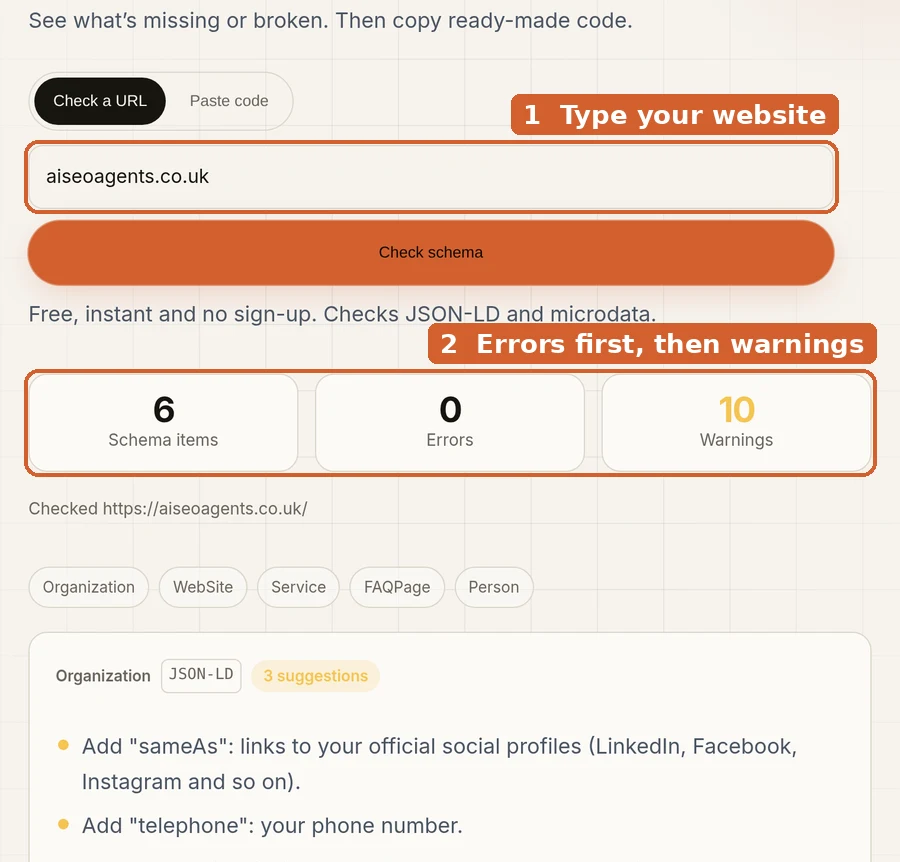
Yes, our own site has warnings too.
They're optional extras, like a phone number we've chosen not to list.
Got code from this guide? Paste it in before it goes live.
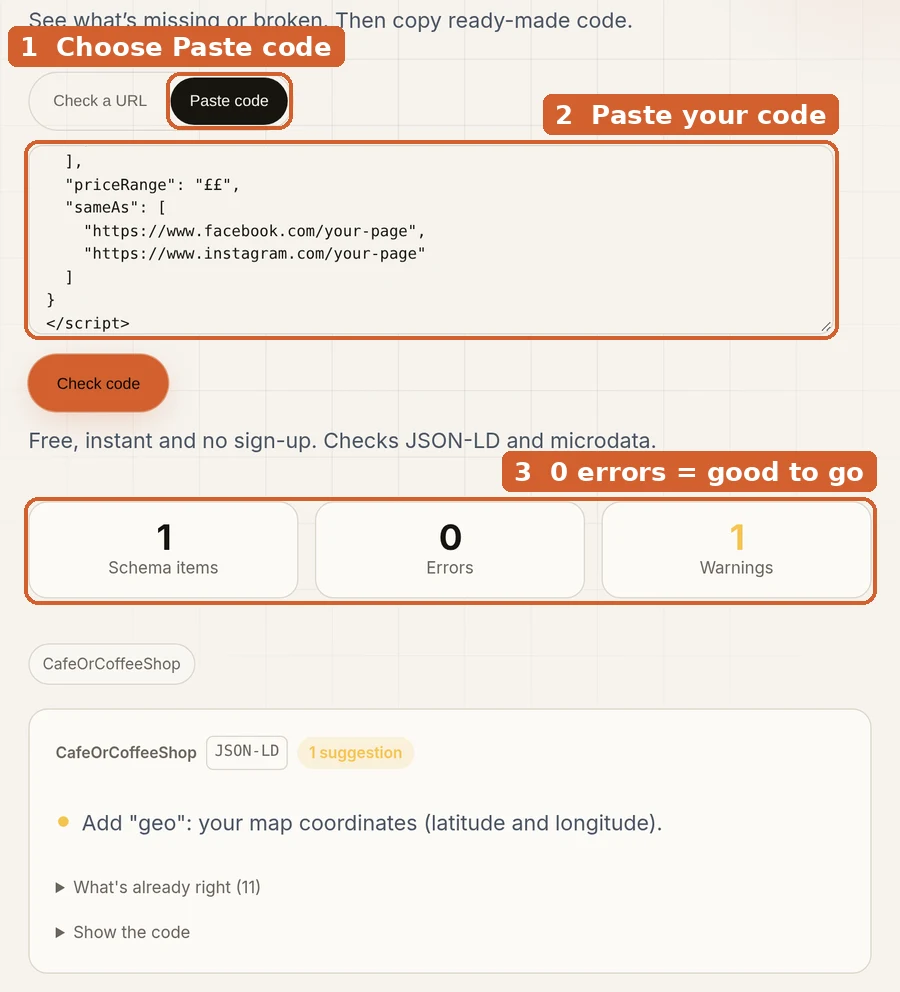
We ran all four examples above through it. Every one came back with 0 errors.
Errors mean Google may ignore that block. Fix them first.
Warnings are nice-to-haves. Add them if they're true.
Happy with it? Time to add it.
Adding it to your website is a copy and paste job
You paste the code into your site's header. That's an area of the page visitors don't see.
Most website builders have a setting for it.
Look for "custom code", "header code" or "code injection".
On WordPress, a free header-code plugin does the job.
Check first. Some builders and plugins already add some of this for you.
Run our checker before you paste, so you don't end up with two.
Then run the checker again afterwards. You should see your business appear.
Google can take a few days to notice. That's normal.
Stuck? Send your web designer this page. It's a quick job for them.
Before you go, avoid these.
Four mistakes that make Google ignore your code
1. Giving yourself star ratings. Stars you add to your own business won't show.
Google only wants review stars here from sites that collect reviews of other businesses.
2. Saying things your page doesn't. The code must match what visitors see.
That means the same hours, prices and answers. If not, Google can ignore it.
3. Pasting from Word or Google Docs. They turn " into “. That breaks the code.
Copy from this page, or use our generator.
4. Setting it and forgetting it. New hours? New number? Update the code too.
Old details are worse than none.
Quick answers
Do I need a developer?
No. If you can paste text into a box in your website settings, you can do this.
Can I use more than one type?
Yes. Each one goes on its own page.
LocalBusiness on your homepage. FAQPage on your questions page. Service on each service page.
Does it cost anything?
No. The code is free. So are our checker and generator. No sign-up.
Will it get me to the top of Google?
No one can honestly promise that. It helps Google get your details right.
Good pages, real reviews and a complete Google Business Profile do the heavy lifting.
What else should I check?
Run our free AI readiness checker.
It gives your site a score out of 100, and your top fixes in order.
Rather we did it for you?
Our AI SEO agent adds this code, keeps it up to date and checks it every week.
A specialist reviews every change.
Plans start at £400 a month, with no long contract. See our plans.
Or start free. Check your website now.